Tips
Retool Text Input Lag: Why It Happens and How to Fix It
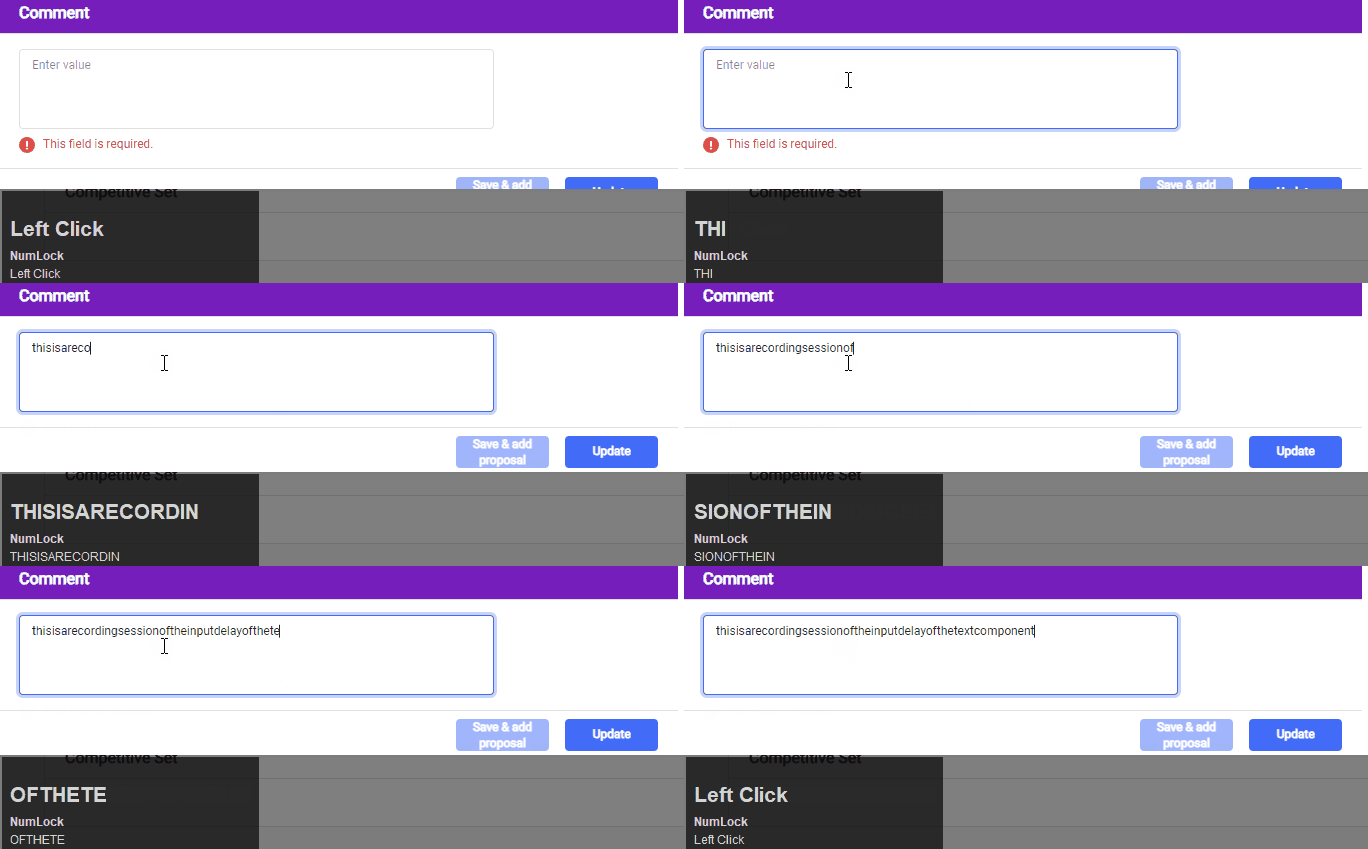
If you've noticed Retool text input lag — that frustrating delay where characters appear a few hundred milliseconds after you type them — you're in good company. This issue affects Text Input and Text Area components across Chrome and Edge on Retool Cloud, and it gets noticeably worse the faster you type or the larger your app grows. Here's a breakdown of every known cause and the exact steps to fix each one.
What Does Retool Text Input Lag Actually Look Like?
The most common symptoms reported by Retool users include:
- Characters appearing on screen with a visible delay after pressing keys
- Lag that worsens the faster you type (typing a full sentence is far worse than a single letter)
- The cursor unexpectedly jumping to the end of the input while typing mid-sentence
- The issue appearing site-wide across multiple apps, not just one
- Performance degrading as the app grows in complexity
These symptoms can have different root causes, so it's worth working through each fix in order.
Fix 1: Upgrade Deprecated Text Input Components
This is the most impactful fix and the first one you should try. Retool periodically deprecates older versions of components and ships upgraded replacements. If your Text Input or Text Area components are running on an older version, they can exhibit sluggish rendering and the characteristic "text jitter" lag.
To upgrade a component:
- Click on the affected
Text InputorText Areacomponent in the Retool editor - Open the right-panel inspector
- Look for an Upgrade button or banner near the top of the panel
- Click Upgrade to migrate the component to the latest version
- Repeat for every affected input across your apps
Yes, it's tedious if you have many inputs, but multiple users have confirmed this completely resolved site-wide input lag. Do not skip this step.
Fix 2: Add a Debounce to Any onChange Event Handlers
If you have an Event Handler attached to your Text Input that fires on change, Retool executes that logic on every single keystroke. Depending on what that handler does — running a query, transforming data, updating state — this can cause significant input lag because the component is waiting on JavaScript execution before it re-renders the next character.
To fix this:
- Click the
Text Inputcomponent and navigate to its Event Handlers section - Find any handler set to trigger onChange
- At the bottom of the event handler configuration window, enable the Debounce option
- Set a debounce delay of at least
300–500milliseconds
Alternatively, consider changing the event trigger from onChange to onBlur so the handler only fires when the user leaves the field. This is often the right UX pattern anyway for form-heavy apps, and it eliminates the per-keystroke overhead entirely.
Fix 3: Reset a Custom App Theme Causing Cursor Jumps
If your specific symptom is the cursor jumping to the end of the input while you're typing in the middle of a sentence, the culprit is likely a custom App Theme rather than input lag in the traditional sense. This has been confirmed by users who noticed the behavior only appeared in apps using a custom theme, while default-theme apps worked correctly.
To fix this:
- Go to the app's Settings in the Retool editor
- Navigate to the Theme section
- Reset the theme to the Retool default
- Test your inputs — if the cursor-jump stops, the theme contained conflicting CSS that was interfering with input focus management
If you need a custom theme, reapply your customizations incrementally to identify the specific style rule causing the conflict.
Fix 4: Reduce Overall App Complexity and Query Load
Multiple users noted that input lag worsened as their app grew. This points to a general performance issue where a large number of components, queries, or event listeners in a single Retool app create enough JavaScript overhead to delay DOM updates — including rendering keystrokes in input fields.
Steps to reduce app-level lag:
- Audit your queries and disable or remove any that run automatically (
triggerOnLoad) but aren't needed on the current view - Break very large apps into multiple smaller, focused Retool apps where possible
- Avoid chaining many event handlers or transformer functions that execute on user interaction
- Use
Debounceon any query set to run on input change, not just event handlers
Fix 5: Check for Accessibility Warnings in the Browser Console
Some users spotted repeated console warnings in Chrome DevTools when hovering over text inputs: "If you do not provide a visible label, you must specify an aria-label or aria-labelledby attribute for accessibility." While these warnings are unlikely to directly cause input lag, they can indicate that the component is doing extra DOM validation work on interaction. Adding a visible Label to your Text Input component via the right-panel inspector is good practice regardless, and may help reduce noisy re-evaluation cycles.
Quick Reference: Retool Text Input Lag Fixes
- Deprecated component: Click Upgrade in the right-panel inspector
- onChange event firing on every keystroke: Enable
Debounceor switch toonBlur - Cursor jumping to end of input: Reset custom App Theme to default
- Lag grows with app size: Reduce auto-running queries and component count
- Console accessibility warnings: Add a visible label to the input component
Retool text input lag is almost always fixable once you identify which of these triggers applies to your app. Start with the component upgrade — it resolves the issue for the majority of cases — then work through the event handler and theme fixes if problems persist. If you've tried everything and the lag remains, export your app via the debug console (Debug Console → Download) and share it with Retool support so they can reproduce the issue on their end.
Ready to build?
We scope, design, and ship your Retool app — fast.