Guides
Retool Table Component New Features: What You Need to Know
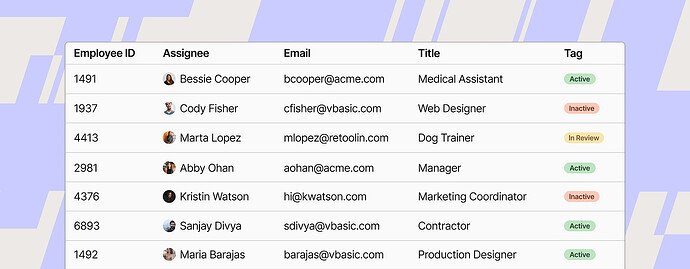
If you're building internal tools on Retool, the Retool table component new features shipped in mid-2023 are worth your attention. The Retool team has been steadily upgrading the new Table component with capabilities that close the gap between a basic data grid and a production-ready interface. This post covers every shipped feature, how to configure each one, and a must-know workaround for a status indicator bug that trips up nearly everyone who tries it.
What's New in the Retool Table Component?
The Retool Table team announced these updates in a running community thread. Rather than making you dig through forum posts, here's a consolidated breakdown of every feature that has shipped and what it actually does.
Enhanced Number, Currency, and Percent Formatting
Columns typed as Number, Currency, or Percent now support two additional formatting controls:
- Notation format — choose between standard, compact, scientific, or engineering notation.
- Sign display — control whether positive, negative, or zero values show an explicit sign character.
These options live in the column settings panel. If you're displaying financial data or metrics dashboards, compact notation (e.g. 1.2M instead of 1,200,000) alone is worth the upgrade.
Auto Height Support
The Table component now supports auto height, and it works with both scroll and paginated overflow modes. Previously, you had to manually pin a pixel height, which made layouts brittle — especially on screens with variable amounts of data. With auto height enabled, the table expands to fit its content naturally inside your Retool canvas.
How to Group Rows in the Retool Table
Row grouping is one of the most requested features for any data grid, and it's now live. Here's how to set it up:
- Open the Table's Columns settings panel.
- Select the column you want to group by and enable the Group by option.
- Repeat for additional columns — you can group by an arbitrary number of columns.
- Set the sort order for each group independently (ascending or descending).
Coming soon from the Retool team: the ability to expand groups by default, and aggregate values in non-grouped columns (think sums, averages, and counts per group).
Cell Tooltips: Overflow and Custom Modes
Cell tooltips solve a real problem — how do you display long content in a compact table without wrecking performance or readability? The new tooltip feature ships with two modes:
- Overflow mode — the tooltip appears automatically when cell content overflows its container. It also renders formatted content for rich column types like
tagsandavatars, so you're not just seeing raw strings. - Custom mode — you define the tooltip content yourself using a template expression, giving you full control over what appears on hover.
To enable tooltips, go to the column settings and look for the Tooltip option under the column's configuration panel. Set the mode to overflow or custom depending on your use case.
Conditional Status Indicators for Table Cells
Status indicators let you conditionally flag or highlight individual cells — perfect for surfacing anomalies, errors, or priority items at a glance. Here's how to add one:
- In the column settings, open the Addon dropdown and select a status indicator.
- Use the "Show when" field to write a conditional expression. Use
{{ item }}to reference the current cell's value. - The first status indicator whose condition evaluates to
truefor a given cell is the one that renders.
Workaround: Status Indicators Not Showing for Undefined or Empty Cells
There's a known bug: if a column is typed as Number or String and the cell value is undefined or an empty string (''), the status indicator won't render — even if your Show when condition should match.
Specifically, {{ item === undefined }} will not trigger the indicator when the cell is truly empty. Here's the workaround, courtesy of community member bradlymathews:
- Change the column type to
String. - Set the column's Mapped value to:
{{ item === undefined ? '-' : item }} - In the "Show when" field, use:
{{ item === '-' }}
This forces undefined cells to display a sentinel value (-), which the status indicator condition can then match reliably. It's a workaround, not a fix — the Retool team has acknowledged this as a bug and a patch is planned for an upcoming release.
One More Bug to Know: Tooltip Content Selection
If you're using cell tooltips in custom mode and you need users to be able to copy the tooltip content, be aware: there is currently a bug where the tooltip disappears when a user moves their mouse over it, making text selection impossible. The Retool team has confirmed this and flagged it for the next release. For now, if copyable content is critical, consider displaying it in a modal or a side panel triggered by row click instead.
Bottom Line
The Retool table component has matured significantly with these updates. Row grouping, cell tooltips, status indicators, and auto height collectively make it viable for much more complex use cases than the original Table component could handle. Just keep the status indicator bug workaround handy — you will hit it. Watch the official community thread for the latest shipping updates as the Retool team continues to iterate.
Ready to build?
We scope, design, and ship your Retool app — fast.