Guides
Retool Table Component Automatic Column Renaming: How to Fix It
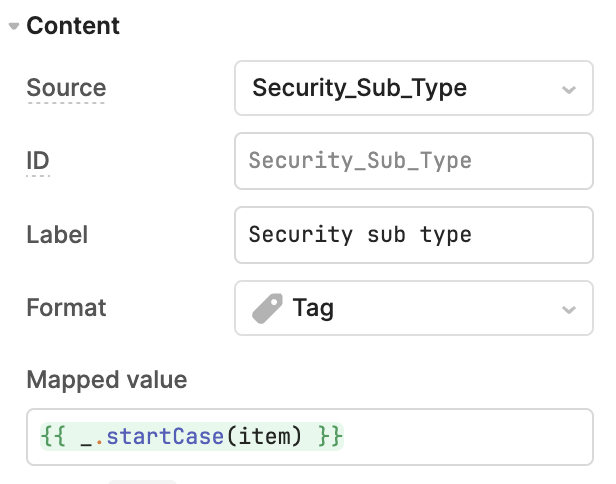
If you've migrated to Retool's new Table component and your column headers suddenly look nothing like your actual database fields, you've hit one of the most frustrating silent "features" in the component: automatic column renaming. A field like LtCallDt becomes "Lt call dt", PrjName becomes "Pri name", and RecordNo becomes "Record no" — all without you touching a single setting. On top of that, cell values for certain column types are transformed using {{ _.startCase(item) }} by default, which means your raw data is being reformatted before it even renders. This guide explains what's causing it, how to fix it column-by-column today, and what your options are if you need a clean workaround right now.
Why Does Retool Automatically Rename Table Columns?
The new Table component was designed to be beginner-friendly, so Retool made an opinionated decision: take the raw source field name and auto-generate a human-readable label from it. This is done using a startCase-style transformation — it splits camelCase or mixed-case strings into separate words, strips special characters, and capitalizes the first letter of each word. The intent was to reduce setup time for simple use cases. The side effect is that anyone working with real database field names — especially from MongoDB, PostgreSQL, or any schema with abbreviated or camelCase conventions — gets labels that are not just wrong, but actively misleading. wtfactor becomes "Wtfactor", CallDurM becomes "Call dur m". For teams that rely on column names matching their data source exactly (for CSV import/export pipelines, for example), this behavior can make the component completely unusable.
The Hidden startCase Problem in Mapped Values
The column header renaming is only half the problem. For certain column types in the new Table component, the Mapped value field is pre-populated with {{ _.startCase(item) }} by default. This means the actual cell data — not just the label — is being transformed. If your data contains values like inProgress, callDurM, or any mixed-case string, they'll be reformatted before display. Most developers don't catch this immediately because it's buried inside each individual column's configuration. The result is a wave of "why does that look so weird?" moments before you finally drill into the column settings and find the culprit.
How to Fix Automatic Column Renaming in Retool's New Table Component
There is currently no global toggle to disable automatic column renaming across all columns at once. Until Retool ships that feature, here's how to correct it manually:
- Fix the column label: Click on the Table component, navigate to the Columns panel in the right sidebar, select a column, and find the Label field. It will be pre-filled with Retool's auto-generated name. Clear it and type the exact field name from your database (e.g.,
LtCallDt,PrjName). - Fix the mapped value: In the same column settings panel, look for the Mapped value field. If it contains
{{ _.startCase(item) }}, delete that and replace it with{{ item }}to display the raw value as-is from your dataset. - Repeat for every affected column: Unfortunately, this must be done per column. If you have a wide table, budget time for this — there's no bulk-edit option in the current UI.
Should You Fall Back to the Legacy Table Component?
If the manual column-by-column fix isn't feasible — particularly if your table has dozens of columns or the schema changes frequently — falling back to the Legacy Table component is a legitimate short-term solution. The legacy component does not apply automatic label reformatting or startCase transformations, so your field names render exactly as they come from your data source. The trade-off is that you lose newer features like row grouping, which is only available in the new component. Whether that trade-off is worth it depends on your use case.
Workarounds for CSV Import and Export Workflows
If your team uses the Table component as part of a CSV import or export pipeline, automatic renaming is especially damaging because the column headers in your export won't match the field names your backend expects. A few ways to protect your workflow in the meantime:
- Manually correct all column labels and mapped values as described above, so the Table's output matches your schema.
- In your export query, reference the raw query data directly (e.g.,
{{ query1.data }}) rather than{{ table1.data }}, which may carry the transformed labels. - Add a transformation step in your query using JavaScript to explicitly map field names before they reach the Table component, giving you full control over what the component receives.
When Will Retool Fix This?
Retool's support team has acknowledged the issue and confirmed there is an internal feature request open to add a way to disable automatic column renaming globally. Multiple users have added +1 votes to the request. If this is affecting your team, the best thing you can do right now is submit feedback directly to Retool through the community forum or your account team to increase the priority of the fix. In the meantime, the manual label correction and {{ item }} mapped value replacement remain the only fully reliable fixes available in the new Table component.
Key Takeaways
- Retool's new Table component auto-reformats column headers using a
startCase-style transformation — there is no global off switch yet. - Some column types also default the Mapped value to
{{ _.startCase(item) }}, transforming your actual cell data. - Fix it per column by editing the Label field and replacing
{{ _.startCase(item) }}with{{ item }}in the Mapped value. - If you have a large table or a CSV workflow, the Legacy Table component is a viable fallback until Retool ships a global disable option.
Ready to build?
We scope, design, and ship your Retool app — fast.