Guides
Retool Table Action Button Hidden with currentSourceRow
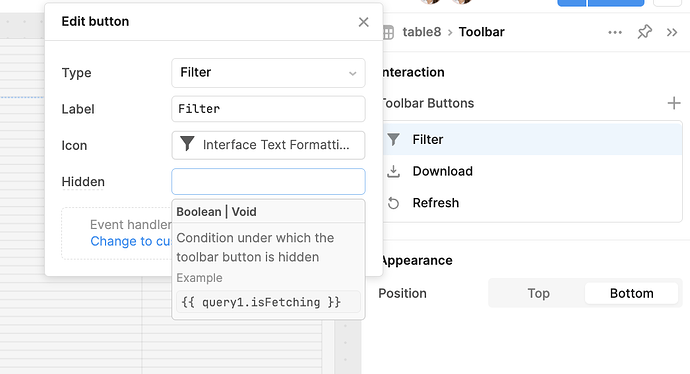
If you've tried to dynamically hide a Retool table action button using {{ currentSourceRow }} in the hidden property, you've probably already discovered that it doesn't work — even though the exact same expression works perfectly in the disabled property. This is one of the most frustrating inconsistencies in Retool's table component, and it's been a recurring pain point for developers building internal tools that need clean, context-aware UIs. This guide explains why it happens, what workarounds exist right now, and what Retool has shipped to partially address the problem.
Why currentSourceRow Works in Disabled but Not Hidden
The disabled and hidden properties on table action buttons look identical in Retool's UI, so it's natural to assume they behave the same way. They don't. Retool's engineering team originally chose not to support {{ currentSourceRow }} in the hidden property — likely because of the layout complexity it introduces. When an action button is hidden for some rows but visible on others, the table has to decide what to do with that empty space in the action column. Unlike disabled, which keeps the button in place and just grays it out, hidden removes the element entirely, which can cause the action column to shift or reflow inconsistently across rows.
That said, the Retool community has made a strong case that hiding actions is often better UX than disabling them. A disabled button raises the question: "Why can't I click this?" A hidden button simply signals that the option isn't relevant for this row — no explanation needed.
Real-World Use Cases Where This Matters
Understanding why developers need this feature helps clarify why the disabled workaround often falls short. Here are the most common scenarios:
- Preferred item selection: An action triggers a long chain of API calls to mark an item as the preferred choice and store data in a database. A "Refresh" action should only appear on rows that have already been processed — rows with no database record should show nothing, not a grayed-out button.
- BOM and CAD data tables: In bill-of-materials tables tied to CAD systems, an action to pull drawing data should only appear on rows where the item is revision-managed or categorized correctly. Hiding the button entirely removes ambiguity for the user.
- Single-select table row deselection: Because the new Retool table component removed the built-in "Clear selection" feature from the legacy table, developers have been rolling their own using a "Deselect" action button with a
clearSelection()script. The button should only appear on the currently selected row — something like{{ currentSourceRow.entryID == TDTable.selectedRow.entryID ? false : true }}— but this expression isn't evaluated in thehiddenfield.
What Retool Has Shipped (and What's Still Missing)
Retool's team acknowledged these requests and has made a partial fix: dynamic show/hide for toolbar buttons has shipped to Cloud. This means you can now conditionally show or hide buttons in the table toolbar based on state — for example, showing a "Clear Selection" toolbar button only when a row is actually selected.
However, as of the latest community updates, per-row action button hiding using currentSourceRow in the hidden property is still not fully supported. The disabled property remains your only native per-row option for action buttons in the main table body.
Workarounds You Can Use Right Now
While you wait for full support, here are practical approaches that cover most use cases:
- Use disabled instead of hidden: It's not as clean, but
{{ currentSourceRow.status === 'processed' ? false : true }}in thedisabledfield will at least prevent users from triggering actions on invalid rows. Pair it with a tooltip to explain why the button is inactive. - Use toolbar buttons for selection-dependent actions: Since toolbar-level dynamic visibility is now supported, move actions like "Deselect" or "Refresh Selected" to the toolbar. Show them conditionally based on
{{ TableName.selectedRow }}or similar table state. Example: set the toolbar button's hidden property to{{ TableName.selectedRow.entryID == null }}. - Use a custom column instead of an action button: Add a custom column with a button component. Custom columns have more flexible property bindings and may allow you to use
{{ currentSourceRow }}in visibility logic depending on your Retool version. This is more setup work but gives you full control over per-row rendering. - Filter your data before it reaches the table: In some cases, you can restructure your query or transformer to exclude rows where the action isn't applicable, effectively removing the need for conditional hiding altogether.
How to Set Up a Conditional Toolbar Button as a Workaround
If your use case is row-selection-dependent (like a "Deselect" or "Refresh" action), here's how to use the newly shipped toolbar dynamic visibility to approximate the behavior:
- Add a toolbar button to your table component (e.g., label it "Deselect Row").
- Set its onClick handler to run a script:
{{ TableName.clearSelection() }}. - Set its hidden property to:
{{ TableName.selectedRow.entryID == null }}— replacingentryIDwith your actual unique row identifier. - This button will now only appear in the toolbar when a row is selected, giving users a clean way to deselect without a permanently visible button.
The Bottom Line
Retool's table component is still catching up to the flexibility that the legacy table offered, and the gap between disabled and hidden support for action buttons is a real limitation. The toolbar visibility fix is a meaningful step, but per-row action hiding with {{ currentSourceRow }} in the hidden property remains an open feature request. If this is blocking you, the most reliable path forward is using a custom column with a button component or restructuring your UX to use toolbar-level controls. Keep an eye on Retool's changelog — this is an actively tracked feature.
Ready to build?
We scope, design, and ship your Retool app — fast.