Guides
Retool Scheduling Component: Build a Resource Planning View
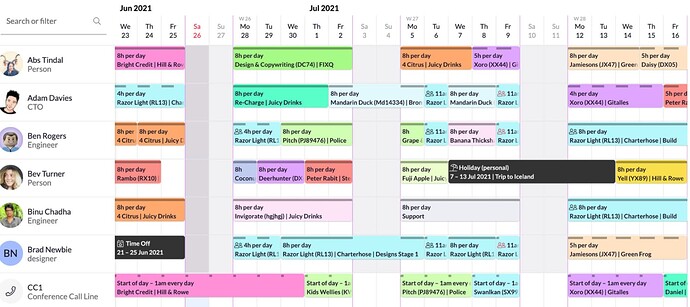
If you're trying to build a Retool scheduling component for resource planning, room bookings, or work schedules, you've already discovered the problem: Retool doesn't ship one out of the box. The Calendar component covers basic event views, but it lacks the timeline or Gantt-style grid that scheduling tools like Float or ResourceGuru are built around. This guide walks you through what's actually possible today — and how teams are shipping production-ready schedule views inside Retool right now.
Why There's No Native Retool Timeline or Scheduler Component
Retool's Calendar component is powered by FullCalendar under the hood, which does support a Timeline layout. The problem is that Retool hasn't exposed that view option in the component's configuration panel. A feature request has been submitted to the Retool team to unlock the Timeline layout from FullCalendar, but as of now it is not on the active roadmap. Until that changes, you have two realistic paths: hack the Table component into a schedule grid, or build a Custom Component using a React scheduler library.
How to Build a Resource Schedule Using the Retool Table Component
This is the approach that requires no custom code and can be shipped fast. The idea is to structure your data so that each row represents a resource (a person, room, or asset) and each column represents a time slot (a day, week, or hour). Cell values then represent bookings or availability states.
- Step 1 — Shape your data query. Write a SQL or API query that pivots your bookings table so rows are resources and columns are dates or time slots. Your query result should look like:
{ resource: "Alice", "2024-06-01": "Project A", "2024-06-02": null, ... } - Step 2 — Map the data to the Table component. Set the
Tablecomponent's data source to your pivot query. Each column key becomes a visible column header. Use Column Settings to rename date columns into readable day labels. - Step 3 — Apply conditional cell styling. Use the
Tablecomponent's column-level Color Rules or inject custom CSS viaRetool CSSto color cells based on their booking status. For example, booked cells can be green, conflicts red, and empty cells grey. - Step 4 — Wire up a modal for booking actions. Set the
Tablecomponent's Row Selection or Cell Click event to open aModalcomponent. Passtable1.selectedRow.datainto the modal to pre-populate a booking form. On submit, run anINSERTorUPDATEquery and triggerquery1.trigger()to refresh the schedule. - Step 5 — Add horizontal scrolling for wide grids. If you have many time columns, wrap the table in a
Containerand applyoverflow-x: autovia custom CSS so users can scroll the schedule horizontally without breaking the layout.
Real-World Use Cases Teams Are Solving This Way
The workaround above isn't just theoretical — teams across industries are shipping it in production. Common use cases include staff scheduling (who works which shift and when), room and venue occupancy management for event companies, and equipment or asset allocation across project timelines. One agency built a full client-facing schedule tool this way, where clicking any cell opens a modal with booking details, and the whole thing integrates with their existing data sources already connected to Retool — no additional SaaS tool required.
When to Use a Custom Component Instead
The Table hack works well for moderate data sets and simple booking logic. But if your schedule needs drag-to-resize events, overlap detection, or multi-row resource grouping, you'll hit the limits fast. In that case, a Custom Component built on top of a React scheduler library is worth the investment. DayPilot's React Scheduler is a solid starting point — it supports resource rows, time column headers, and event drag-and-drop out of the box. You mount it as a Retool Custom Component, pass in your model data from a query, and emit events back to Retool using Retool.modelUpdate() when a user creates or moves a booking.
What to Expect From Retool's Roadmap
The Retool team has acknowledged the gap. The most likely near-term fix is exposing the FullCalendar Timeline view inside the existing Calendar component — which would give you a proper horizontal resource-time grid with minimal setup. If this feature matters to your team, upvoting the community thread and adding your specific use case in a reply increases the chance it gets prioritized. In the meantime, the Table component approach is reliable enough for most internal tool use cases and can be built in an afternoon.
Quick Comparison: Table Hack vs. Custom Component
- Table component workaround: Fast to build, no custom code, works with existing Retool queries, limited interactivity, no drag-and-drop
- Custom Component (DayPilot / FullCalendar): Full scheduler UX, drag-and-drop, overlap handling, requires React knowledge and more setup time
- Retool Calendar (current): Good for simple event views, no timeline or resource row support yet
If you're trying to ship a resource planning view in Retool this week, start with the Table component approach. It's not pretty under the hood, but with custom CSS and a modal workflow, your users won't know the difference. Save the custom component build for when your requirements genuinely outgrow what a well-structured table can do.
Ready to build?
We scope, design, and ship your Retool app — fast.