Guides
Retool Pivot Table: Best Ways to Explore Data Today
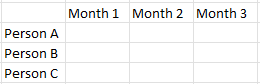
If you've been searching for a Retool pivot table, you've probably hit the same wall as hundreds of other builders: there's no native pivot table component (yet). What there is, however, are several practical workarounds that can give your users dynamic data exploration without you writing a billion queries. This guide covers the fastest options, ranked by complexity, so you can pick the one that fits your deadline tonight.
Why Retool Doesn't Have a Native Pivot Table (Yet)
The Retool community has been asking for a pivot table component for years. The core team has acknowledged the request and added it to the Table component roadmap. In the meantime, the upgraded Table component ships with some powerful features—scrolling up to 500,000 rows, 11 cell types including Number, Text, DateTime, and HTML, plus column resizing, reordering, pinning, hiding, single-column sorting, and keyboard navigation. But true pivot functionality—drag-and-drop row/column grouping and aggregation—isn't there yet. That means you need a workaround.
Option 1: Use a Lodash Transformer for Quick Grouping
If all you need is grouped data rather than a full interactive pivot, a JavaScript transformer powered by lodash is the fastest path. Retool ships with lodash available out of the box, so no extra setup is required.
- Run your data query as normal (e.g.,
query1). - Add a new JavaScript transformer in the query panel.
- Use
_.groupBy()to group rows by any column:
{{_.groupBy(query1.data, 'country')}}
This returns an object where each key is a unique value from the country column and each value is an array of matching rows. You can then pass this into a Table or iterate over it with a Listview. It's not a drag-and-drop pivot, but it eliminates the need for 10 separate queries just to slice data differently. For simple grouping use cases, this is often enough.
Option 2: Embed pivottable.js as a Custom Component
For a full interactive pivot table experience—with drag-and-drop rows, columns, and aggregations—the best current solution is embedding pivottable.js as a Retool custom component. This is what several community members landed on after experimenting, and it works well once you understand the wiring.
Here's how to set it up step by step:
- Step 1 — Prepare your query data. Run a SQL query (e.g.,
query1) and add a transformer that formats the result as an array of objects usingformatDataAsArray. This is required because pivottable.js expects an array, not Retool's default columnar format. - Step 2 — Create a Custom Component. In your Retool app, drag in a Custom Component from the component panel.
- Step 3 — Set the model. In the custom component's model, pass your query data. For example:
{ "data": {{ query1.data }} }. You can add debug keys here while testing. - Step 4 — Write the iframe HTML. In the custom component's iframe/code editor, load pivottable.js and its CSS from a CDN (use
jsdelivr.netsince pivottable.js is not on cdnjs), then initialize it with the data from the model. A minimal example looks like:
$("#pivot").pivotUI(window.Retool.modelUpdate.data, {});
- Step 5 — Listen for model updates. Use
window.Retool.subscribe(function(model) { ... })to re-render the pivot whenever query data changes. This is the part most people miss—without the subscribe call, the pivot only renders on load and won't react to filter changes. - Step 6 — Size the component. Pivot tables need space. Set the custom component's height generously (400–600px minimum) and make sure overflow is set to
autoin your iframe CSS so the drag handles don't get clipped.
One common gotcha reported by community members: watch for rogue commas in your iframe JavaScript. A trailing comma in an object or function call will silently break the component in some browsers without a visible error in Retool's UI.
Option 3: Multiple Queries with Dynamic Parameters
If custom components feel out of scope and you need editable cells (not just display), the multi-query approach is still valid—just make it smarter. Instead of writing 10 static queries, write one parameterized query that accepts groupByColumn as a variable, then drive it from a Select component. This cuts query count down to one and gives users the illusion of pivoting without a dedicated component.
What About Editable Pivot Data?
Several builders need users to not just view grouped data but edit specific cells inline. Neither the lodash approach nor pivottable.js supports writeback out of the box. For this use case, your best current bet is the native Retool Table with editable columns enabled, combined with a grouping transformer—accepting that users will see flat rows rather than a true pivot layout. Full editable pivot support will likely require waiting for the native component.
The Bottom Line
A native Retool pivot table is on the roadmap, but it isn't here yet. For most teams today, embedding pivottable.js as a custom component delivers the closest experience to a real pivot table with drag-and-drop exploration. If you just need grouping, _.groupBy() in a JS transformer is a two-minute fix. Pick the option that matches your users' needs and your timeline—and revisit the native Table component release notes, because this feature is actively being developed.
Ready to build?
We scope, design, and ship your Retool app — fast.