Guides
Retool Not Saving Changes? Here's Why and How to Fix It
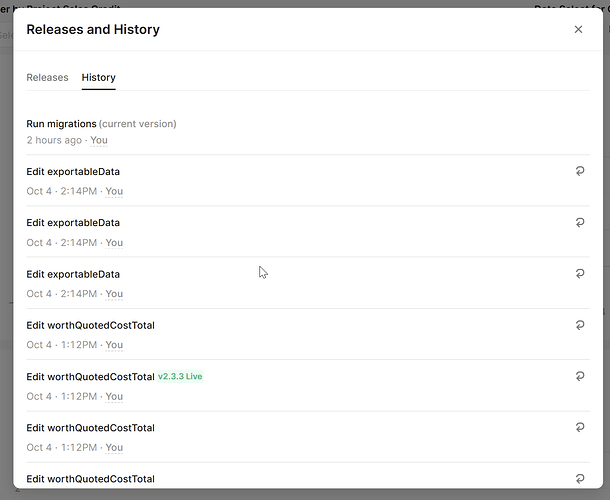
If Retool is not saving changes, you've probably already felt the gut punch: you spend an hour restructuring a dashboard, show it to a stakeholder, shut your laptop — and the next morning it's gone. No error message, no warning, just a reverted app. This is a known issue tied specifically to how Retool handles autosave across multiple editor tabs, and once you understand the mechanism, it's completely preventable.
Why Retool Silently Loses Your Work
Retool saves your app state automatically in the background — you don't need to hit Ctrl + S to trigger a save, though you can. The problem isn't that saves are failing. The problem is that two editor tabs saving the same app will overwrite each other.
Here's the exact sequence that causes your changes to disappear:
- You open the Retool editor in Tab A and spend an hour building. Autosave kicks in and records your latest state.
- At some point — often by clicking the
Previewbutton — Retool opens your app in Tab B. If you then click Edit App inside that preview tab, you've now got two active editor sessions for the same app. - Tab B loaded the app state from before your recent changes in Tab A were synced to it. When Tab B autosaves (even with no intentional edits), it writes that older state back to the server.
- Your work from Tab A is overwritten. It shows up in version history, but the current app state has been rolled back.
This also happens when multiple people are editing the same app simultaneously, or when you have the same Retool organization open across different browser windows. The last autosave wins — and it may not be the one with your work.
How to Stop Retool from Reverting Your Changes
Follow these steps to eliminate the multiple-tab problem and protect your progress going forward.
- Never click "Edit App" from a preview tab. When you hit the
Previewbutton in the editor, Retool opens a new tab. Close that tab when you're done reviewing. Do not clickEdit Appfrom the preview — this creates a second editor session that will eventually overwrite your main one. - Use one browser per Retool organization. If you manage apps across multiple Retool accounts or organizations, isolate each one in a separate browser (e.g., Chrome for Org A, Firefox for Org B). Having multiple orgs open in the same browser increases the risk of tab conflicts.
- Coordinate with your team before editing. Until Retool ships full multiplayer support, treat the editor like a single-user session. If a colleague is viewing or editing the app, wait until they're out before making changes.
- Do not make edits while viewing a historical snapshot. If you use the
historyOffsetfeature to browse older app states, do not make any changes while in that mode. Saving from a historical offset can overwrite your current production state. - Export to JSON as a safety net. Before any significant build session, export your app via
Settings → Export. This gives you a local backup that you can re-import if autosave betrays you. Committing that JSON to a GitHub repo gives you a full version-controlled history outside of Retool.
How to Recover Lost Changes in Retool
If your changes are already gone, don't panic — they're likely still in version history.
- Open the app in the editor and click the History icon in the top toolbar.
- Browse the list of saved states. Your lost changes will appear here even if the current app state doesn't reflect them.
- Click on a previous state to preview it. When you find the version you want, restore it. Retool will make that state the current version of the app.
- If you had a JSON export, go to
Settings → Importand upload the file to restore the app to that snapshot.
Note: if you edit anything while browsing history via historyOffset, you risk losing additional states. Navigate history in read-only mode until you're ready to restore.
What Retool Is Doing to Fix This
Retool's team is aware of this issue and has acknowledged it publicly in the community forum. A full multiplayer editing feature is in development, which will allow multiple editor sessions to coexist without overwriting each other — similar to how Google Docs handles concurrent edits. A feature request for in-editor warnings when multiple editor tabs are detected for the same app has also been filed, which would surface the problem before it causes data loss rather than after.
In the meantime, the workarounds above are reliable. Dozens of builders have stopped experiencing Retool not saving changes simply by enforcing the one-editor-tab rule and avoiding the Edit App button inside preview tabs.
The Short Version
If Retool keeps reverting your work, the cause is almost certainly a second editor session overwriting the first. Close all preview tabs, stick to a single editor window per app, coordinate with teammates, and export to JSON before long sessions. Until Retool's multiplayer mode ships, treating the editor as a single-user tool is the only reliable way to keep your changes safe.
Ready to build?
We scope, design, and ship your Retool app — fast.