Tutorials
Retool Multiselect in Table Column: The Modal Workaround
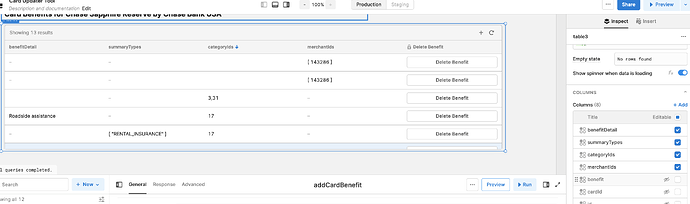
If you're trying to add a retool multiselect in a table column so users can pick multiple values per cell, you've already hit the wall: Retool doesn't have a built-in multiselect column type. The community has been asking for it, but as of now it lives in the feature-request backlog. The good news is there's a solid workaround using the Modal column type paired with a Multiselect component, and once you know the gotchas it works reliably. This post walks you through the full setup.
Why Retool Doesn't Have a Native Multiselect Column Type
Retool's table component supports column types like Text, Number, Tag, Boolean, and Modal, but there is no Multiselect column type out of the box. For use cases where a database field stores an array of values — say, a list of category IDs like [1, 3, 31] — the table has no native way to render an inline multiselect editor. The modal column type is the closest escape hatch, and it's more powerful than it looks.
How to Set Up a Multiselect Inside a Table Modal Column
Follow these steps to get a working multiselect editor inside your Retool table:
- Step 1 — Change the column type to Modal. In your table's column settings, find the column that holds your array data and switch its type to
Modal. This turns each cell into a button that opens a modal when clicked. - Step 2 — Fix the disappearing cell values. After switching to
Modal, you may notice the cell content goes blank. This happens because the display value needs to be explicitly set. In the column's Button Text field, set the value to{{ self }}— wrapping it in quotes if needed — to restore the displayed array content in each cell. - Step 3 — Add a Multiselect component inside the modal. Open the modal editor and drag in a
Multiselectcomponent. This is where users will add or remove category values. - Step 4 — Set the Multiselect data source. Configure the
ValuesandLabelsfields of the multiselect. You can point these to a query that returns your full list of options — for example,{{ getCategories.data.id }}and{{ getCategories.data.name }}. - Step 5 — Set the Default Value to the current cell's data. In the
Default Valuefield of the multiselect, reference the selected row's cell value:{{ table1.selectedRow.data.categoryIds }}. This pre-populates the multiselect with whatever values are already stored for that row. - Step 6 — Add a Save button and write-back query. Inside the modal, add a
Buttoncomponent labeled "Save." Wire its click event to a query that updates your database with the multiselect's current value:{{ multiselect1.value }}. Pass the selected row's primary key alongside it so you're updating the right record.
Why the Default Value Doesn't Pre-Populate When Using a Mapped Query Source
This is the most common stumbling block, and it trips up almost everyone who gets past step 2. When you manually enter Values and Labels into the multiselect, the Default Value pre-populates correctly. But as soon as you switch to a mapped data source (i.e., pulling values from a query), the default value stops working and the multiselect opens empty — even when the IDs in your default value array definitely exist in the query results.
The root cause is a timing and rendering issue: when the multiselect uses a mapped data source, the options may not be fully resolved at the moment Retool evaluates the default value, so the match fails silently. Here are the fixes that work:
- Confirm the default value reference is correct. Double-check that your
Default Valuefield is set to{{ table1.selectedRow.data.categoryIds }}(or whatever your column is named). It's easy to accidentally crop this off when screenshotting or copying config between components. - Check that value types match. If your query returns category IDs as strings (
"3","31") but your database stores them as integers (3,31), the comparison will fail. Cast them to the same type. You can use{{ table1.selectedRow.data.categoryIds.map(Number) }}or.map(String)as needed. - Use a transformer to normalize the query output. Create a
Transformerthat shapes your categories query into a clean array of{ value, label }objects with consistent types, then reference the transformer in your multiselect instead of the raw query. - Trigger the modal only after the query has run. If your categories query is set to run manually, make sure it has already executed before the modal opens. You can chain it: set the column's modal trigger to also fire
getCategories.trigger()before opening.
Saving the Updated Array Back to Your Database
Once the user has made their selections and clicks Save, you need to write the array back correctly. Most databases store this as a JSON array or a Postgres array type. In your update query, reference {{ multiselect1.value }} which returns a JavaScript array of the selected values. If you're using a REST API or need a comma-separated string instead, transform it with {{ multiselect1.value.join(',') }}. After a successful save, call {{ yourMainTableQuery.trigger() }} to refresh the table so the updated values are reflected immediately.
Quick Summary
- Retool has no native
Multiselectcolumn type — useModalcolumn type as a workaround. - Restore blank cell display values by setting Button Text to
{{ self }}. - Pre-populate the multiselect using
{{ table1.selectedRow.data.yourColumn }}as the Default Value. - If the default value doesn't load with a mapped query source, check for type mismatches between your default value array and the query's returned values.
- Use a Transformer to normalize query output and ensure consistent value types.
It's more steps than a native multiselect column would require, but this pattern is stable and gives you full control over the save logic. Once you've built it once, it's easy to replicate across other tables in your Retool app.
Ready to build?
We scope, design, and ship your Retool app — fast.