Guides
Retool Modal Frames: How to Use Them in Your App
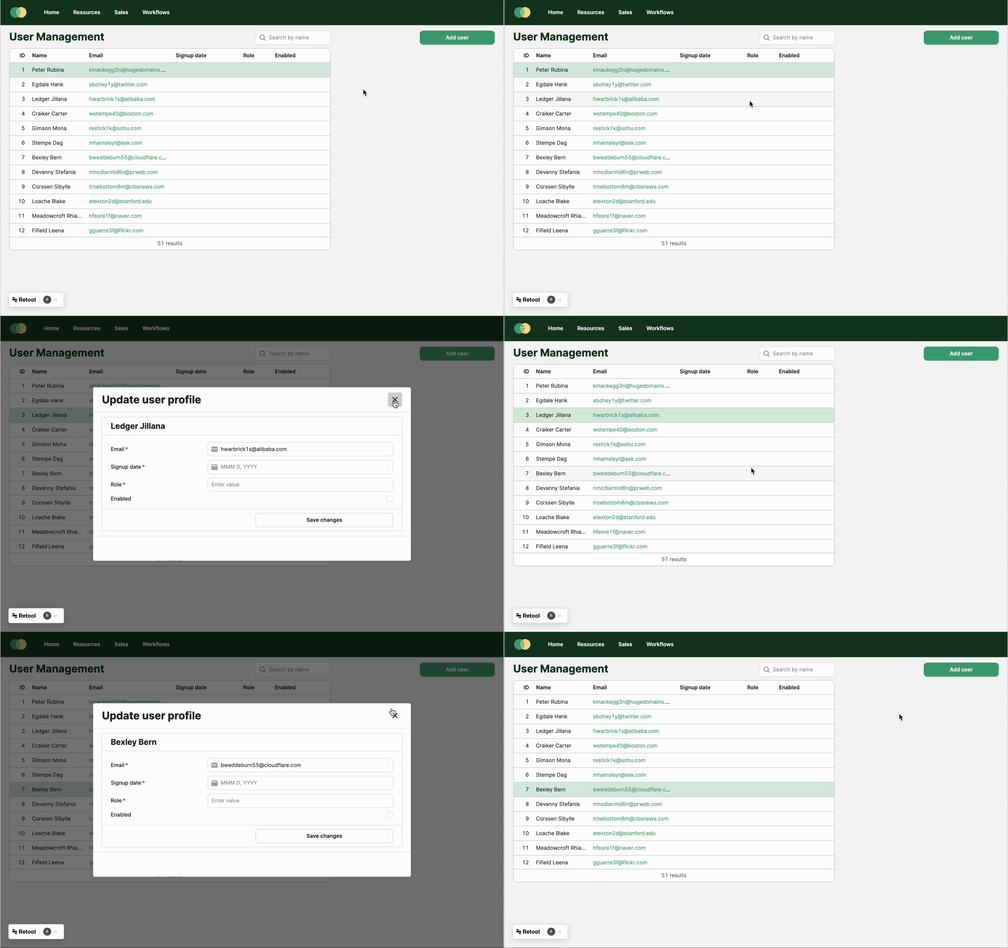
If you've been building Retool apps for a while, you've probably run into the frustration of managing modals — cluttered component trees, unwanted modal buttons sitting around, and limited control over when a modal actually shows up. Retool Modal Frames fix all of that. Introduced as a follow-up to Drawers, Modal Frames let you add, control, and toggle modals anywhere in your app without being forced to attach a button to them.
What Are Retool Modal Frames?
Modal Frames are a type of Frame component in Retool that behave like traditional modals — they overlay your app's UI and can block interaction with the rest of the page — but with one key difference: you control their visibility programmatically. That means you can show or hide a modal based on query results, user actions, component state, or any other logic in your app, not just a button click.
This makes them significantly more powerful than the legacy modal component, which essentially required a dedicated button to open it. The old approach left developers with a graveyard of hidden modal-trigger buttons cluttering the canvas. Modal Frames eliminate that entirely.
How to Add a Modal Frame to Your Retool App
Getting started with Modal Frames is straightforward. Here's how to add one:
- Open your Retool app in the editor.
- Navigate to the component tree in the left panel.
- Find the Frames section and click the
+button next to it. - Select Modal Frame from the options.
- Your new Modal Frame will appear in the component tree. It won't be visible on the canvas by default — that's intentional.
Once added, you'll see the Modal Frame listed under Frames in the component tree, alongside any Drawers you've created. From here, you can drag components into it just like any other container.
How to Toggle a Modal Frame's Visibility
This is where Modal Frames really shine. Instead of relying on a button component, you can control visibility using Retool's built-in methods. To open a Modal Frame programmatically:
- Reference the Modal Frame by its component name, e.g.
modalFrame1. - Call
modalFrame1.open()from any event handler, script, or query success callback. - To close it, call
modalFrame1.close().
For example, if you want to show a confirmation modal after a query runs successfully, add modalFrame1.open() to the query's On Success event handler. No button needed. You can also wire this up to a table row click, a form submission, or even a timed interval — the control is entirely yours.
Building Blocking Modals in Retool
One of the most practical use cases for Retool Modal Frames is building blocking modals — modals that demand user attention before they can continue interacting with the rest of the app. Think confirmation dialogs before destructive actions, required data entry prompts, or critical alert notifications.
To create a blocking modal, configure your Modal Frame so that it cannot be dismissed by clicking outside of it. You can control this behavior in the Modal Frame's properties panel. Combine this with a form or a set of action buttons inside the frame, and you have a fully controlled, interruption-style UX pattern — built entirely in Retool without any workarounds.
Modal Frames vs. Legacy Modals: What's the Difference?
- Legacy modals required a dedicated button component to open them. This meant extra clutter on your canvas and limited flexibility.
- Modal Frames can be opened and closed from any event handler or script, giving you full programmatic control.
- Modal Frames live under the
Framessection alongside Drawers, making them easier to organize. - Modal Frames support use inside modules (available in beta — contact Retool support to enable the flag for your org).
Using Modal Frames Inside Modules
If your Retool setup relies heavily on modules for reusable components, good news: Modal Frames now support modules as a beta feature. To enable it, you'll need to contact Retool and provide your org's domain name to have the feature flag turned on. Once enabled, you can use Modal Frames inside module definitions just like any other frame type, making it easier to build self-contained, reusable UI patterns that include modal behavior.
On-Premise Availability
If you're running Retool on-premise, Modal Frames availability depends on your installed version. Features released in Retool Cloud don't always land in self-hosted versions immediately. Check your Retool instance's version against the release notes, or reach out to Retool support to confirm when Modal Frames will be included in your on-premise build.
Key Takeaways
- Add Modal Frames from the
Framessection of the component tree using the+button. - Use
modalFrame1.open()andmodalFrame1.close()to control visibility from any event handler. - Modal Frames are ideal for blocking modals, confirmation dialogs, and attention-critical prompts.
- No more button-triggered-only modals — full programmatic control is now standard.
- Module support is available in beta; contact Retool to enable it for your org.
Modal Frames are one of those quality-of-life improvements that seem small on paper but make a real difference when you're building complex internal tools. If you've been avoiding modals in Retool because of the old limitations, now's the time to revisit them.
Ready to build?
We scope, design, and ship your Retool app — fast.