Tips
Retool Max Width Resetting to 1200px: Causes and Fix
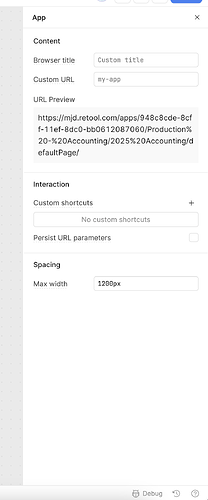
If your Retool app suddenly looks cramped and narrow, there's a good chance the Max width setting under App Settings > Spacing has silently reset to 1200px. This is a confirmed bug on Retool Cloud that started appearing in mid-October 2025, and it affected dozens of teams across multiple apps at the same time — often without any warning or notification from Retool. Here's what happened, why it happened, and exactly how to fix it.
What Is the Retool Max Width Setting?
Retool gives you a global spacing control at the app level that determines how wide your app's content area can grow. You'll find it under App Settings → Spacing → Max width. Most teams building internal tools on larger monitors set this to 100% so the app fills the full browser window. The default value Retool ships with is 1200px, which can make wide tables, charts, and dashboards look uncomfortably squeezed on larger screens.
Why Did Retool Max Width Reset to 1200px?
A platform-level migration on Retool Cloud — pushed sometime around a Thursday or Friday in mid-October 2025 — caused two things to silently revert for many apps:
- The
Max widthproperty was reset from its custom value (e.g.100%or2000px) back to the default of1200px. - App themes were also reset to defaults for some users, causing visual components to lose their custom theme colors.
The migration appeared to overwrite per-app spacing configuration without preserving existing values. What made it especially frustrating was that it kept re-applying for some users — they'd fix it, and a few hours later it would reset again. Retool confirmed awareness of the issue and shipped a fix, but in the meantime teams needed a workaround to keep their apps usable.
How to Fix the Retool Max Width Reset
Follow these steps to restore your app's layout immediately:
- Open your affected Retool app in the editor.
- Click on the canvas background (deselect all components) to bring up App Settings in the right-hand panel.
- Navigate to the Spacing section and locate the
Max widthfield. - Change the value from
1200pxto either100%(recommended for full-width layouts) or a large pixel value like2000px. - Save and deploy the app.
One workaround that circulated in the community during the incident was to set the value to an extremely large number like 1000000px. The logic: even if the migration resets it again, a value that large would never visually constrain the layout. This is obviously a hack, not a real solution, but it helped some teams stay unblocked while Retool worked on a proper fix.
Is Your App Theme Also Affected?
Yes — several users reported that their app theme was also reset as part of the same migration. If your component colors, font styles, or brand colors suddenly look wrong, check your theme settings. Go to App Settings → Theme and verify the correct theme is selected and applied. You may need to reselect and re-save your custom theme.
How to Check All Your Apps Quickly
If you manage many Retool apps, manually checking each one is tedious. Here's a practical approach to triage:
- Prioritize apps used on wide monitors or those with data-heavy components like
Table,Chart, orContainergrids — these will look the most broken at1200px. - Ask your team to flag any apps that "feel narrow" in Slack or your internal comms — crowdsourcing is faster than auditing solo.
- Check the Retool Community and your email for any migration notices. In this incident, no proactive notification was sent, which was a gap many users called out.
Will This Happen Again?
Retool has since shipped a fix for this specific migration issue. However, this incident highlights a broader risk: platform-level migrations on Retool Cloud can silently alter per-app configuration. A few habits that help protect you going forward:
- Document your app settings. Keep a lightweight record (even a spreadsheet) of key settings like
Max width, theme name, and custom CSS for each app. It sounds overkill until an incident like this hits. - Monitor visual regressions. If your team does any form of QA or smoke testing after deployments, include a quick visual check of app width and theme.
- Watch the Retool changelog and community. The community thread for this bug had multiple reports within hours — staying subscribed to relevant topics gives you early warning.
The Bottom Line
The retool max width resetting to 1200px issue was a platform bug triggered by a Retool Cloud migration, not anything wrong with your app code. The fix is straightforward — go to App Settings → Spacing → Max width and set it back to 100%. If it keeps reverting, the temporary workaround of setting it to a very large pixel value like 1000000px can buy you time. Retool has acknowledged and patched the root cause, but auditing all your affected apps manually is still necessary since the revert was not automatically undone for everyone.
Ready to build?
We scope, design, and ship your Retool app — fast.