Guides
How to Impersonate Users in Retool for Permission Testing
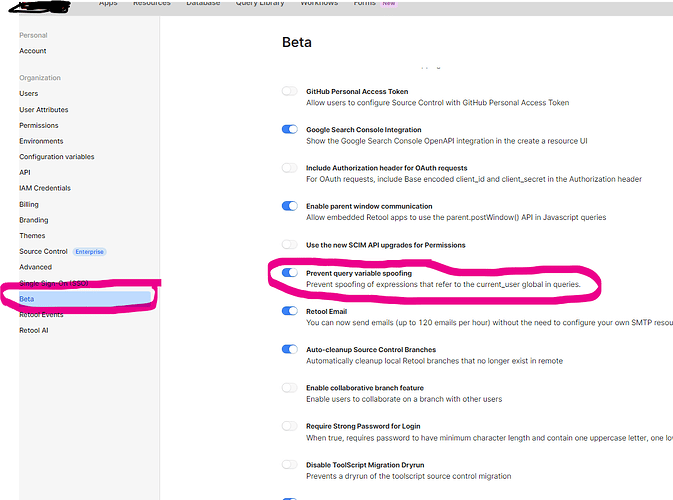
If you've built a Retool app with role-based access control — hiding views, locking components to read-only, or gating features by team — you've almost certainly run into this problem: there's no native way to impersonate a user in Retool or preview the app as a different current_user. You're stuck either logging in as that user directly or jumping on a screen-share call just to see what they see. This guide covers the workarounds that actually work, and how to structure your Retool apps so permission testing doesn't become a bottleneck.
Why Retool User Impersonation Matters for QA
Most production Retool apps serve multiple user groups — ops teams, managers, admins, read-only viewers. You conditionally show or hide components, restrict query execution, and filter data all based on {{ current_user.email }} or {{ current_user.groups }}. The problem is that Retool's editor always runs as you, the builder. There's no built-in "preview as user" or "mock permissions" toggle. That means every time you want to verify that a junior analyst can't see the revenue table, or that a manager's view shows the approval button, you have to either:
- Log out and log back in as that user (if you even have their credentials)
- Ask the user to share their screen
- Deploy and hope for the best
None of these scale. Fortunately, there are several patterns that let you mock current_user and test permissions without leaving the editor.
How to Mock current_user in Retool for Permission Testing
The core idea is to replace hardcoded references to {{ current_user }} with a variable you can control at build time. Here's a step-by-step approach:
- Step 1 — Create a mock user variable. Add a
variablecomponent (or astateobject) calledmockUser. Set its default value to a JSON object that mirrors the shape ofcurrent_user, for example:{ "email": "analyst@company.com", "groups": ["read-only"] }. - Step 2 — Add a dev-mode toggle. Drop a
switchcomponent onto the canvas and label it "Dev: Impersonate User." Wire it to a boolean variable likedevMode. You can hide this component from non-admin users using{{ current_user.groups.includes('admin') }}. - Step 3 — Replace current_user references with a resolver. Instead of referencing
{{ current_user.email }}directly throughout your app, create a single JavaScript query calledgetActiveUserthat returns either the real user or your mock:return devMode.value ? mockUser.value : current_user; - Step 4 — Reference getActiveUser everywhere. Swap all your
{{ current_user.X }}references to{{ getActiveUser.data.X }}. Now you have a single source of truth you can override instantly. - Step 5 — Add a user picker for quick switching. Optionally, pull your user list from your database or identity provider and render a
selectdropdown populated with user emails. When the dev toggle is on, selecting an email auto-populatesmockUserwith that user's real profile data fetched from your users table.
Using Retool Groups to Simplify Permission Logic
If you haven't already, centralizing your permission logic around current_user.groups makes impersonation testing far easier than email-based rules. Instead of writing {{ current_user.email === 'boss@company.com' }} scattered across 40 components, define a single JavaScript query called userPermissions that derives a clean permissions object:
const groups = current_user.groups; return { canEdit: groups.includes('editor'), canApprove: groups.includes('manager'), isReadOnly: groups.includes('read-only') };
Now every component just checks {{ userPermissions.data.canEdit }}. When you swap in a mock user, you only need to change one place and the entire app re-renders correctly. This pattern also makes your Retool app dramatically easier to audit and maintain as roles evolve.
What Retool Is (Still) Missing
To be transparent: as of now, Retool does not have a native "impersonate user" or "preview as role" feature in the editor. The Retool team has acknowledged this gap — it's on their radar — but there's no release date. The community has been asking for the ability to either override current_user from the editor toolbar or select a permission set to preview, similar to how Figma lets you preview prototypes in different states. Until that ships, the mockUser variable pattern above is the most reliable workaround available.
Practical Tips to Avoid Permission Testing Pain
- Keep all permission logic in one JavaScript query — never scatter
current_userchecks across individual component properties if you can avoid it. - Use Retool environments (staging vs. production) to maintain a dedicated test account per role, so you always have credentials ready.
- Document your group names in a
textcomponent hidden behind an admin flag — this saves enormous time onboarding new builders who don't know what groups exist. - Write component-level comments (in the component description field) noting which permission controls visibility, so future you doesn't have to reverse-engineer it.
- If you use Retool's Permission Groups feature in the org settings, mirror those group names exactly in your in-app logic so there's no drift between what the platform enforces and what your UI shows.
The Bottom Line
Retool user impersonation isn't a built-in feature yet, but you don't have to be blocked. By centralizing your current_user references into a single resolver query and introducing a mockUser variable with a dev-mode toggle, you can QA every role's experience directly from the editor — no screen-sharing calls required. It takes about 20 minutes to retrofit an existing app and is absolutely worth it before your next deployment.
Ready to build?
We scope, design, and ship your Retool app — fast.