Guides
How to Expand and Collapse Rows Programmatically in Retool Tables
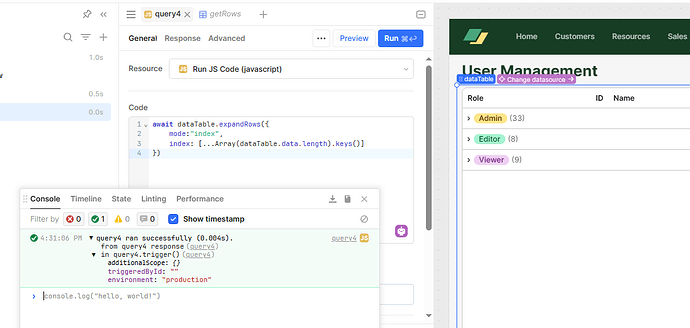
If you've been trying to expand or collapse rows programmatically in Retool, you've probably already hit the wall: the Table component supports expandable rows as a UI feature, but native programmatic control — things like opening a specific row on load, enforcing single-row expansion, or calling something like table.closeAllExpandedRows() — isn't built in yet. This is one of the most upvoted open requests in the Retool community, and for good reason. Here's the current state of the feature, practical workarounds, and how to build the behavior you actually need right now.
Why Programmatic Row Expansion Matters in Retool
Expandable rows are a powerful UX pattern for internal tools. They let you surface detail-on-demand without navigating away from a table — perfect for order details, activity logs, approval queues, or field tech data views. The problem is that without programmatic control, the behavior quickly becomes noisy. Users end up with five rows expanded at once, lose their place, and the interface becomes harder to scan. What most builders actually want is one of two things:
- Single-row expansion mode: when a user expands a new row, the previously expanded row collapses automatically.
- Collapse all rows on a trigger: reset the expanded state when a new query runs, a filter changes, or a modal closes.
Neither of these is available as a native toggle in the Table component today. But there are workarounds that get you most of the way there.
Current Limitations of Retool's Expandable Rows Feature
As of now, Retool's Table component does not expose:
- A method like
table.expandRow(rowIndex)ortable.collapseRow(rowIndex) - A method like
table.closeAllExpandedRows() - A native "single expand" mode that auto-collapses the previous row
- An event handler that fires specifically when a row is expanded or collapsed
The thread on the Retool community forum has been accumulating votes for exactly these features — particularly table.closeAllExpandedRows() — for a significant period of time. If you need this today, you'll need to engineer around it.
Workaround 1: Simulate Single-Row Expansion with a State Variable
The most reliable pattern for enforcing single-row expansion is to manage expanded state yourself using a tempState variable and custom column content. Here's the approach:
- Disable native expandable rows on the
Tablecomponent. - Add a custom column with a Button or Icon component that acts as your expand toggle.
- Create a
tempStatevariable (e.g.,expandedRowId) that stores the currently expanded row's key. - In the button's onClick event handler, run a JavaScript query that sets
expandedRowId.setValue(currentRowId)— or sets it tonullif the same row is clicked again (toggle behavior). - Use a custom column with a
Containeror hidden content section that renders conditionally based on whether{{ expandedRowId.value === currentRow.id }}.
This gives you clean single-row expansion. When a user clicks a new row's expand button, expandedRowId updates, and only the matching row renders its expanded content. No row-juggling, no noise.
Workaround 2: Collapse All Rows by Resetting State on a Trigger
If you're using the manual state approach above, collapsing all rows is trivial — just set expandedRowId.setValue(null) anywhere you need it: on a query success handler, a filter change, a button click, or a modal close event.
If you'd prefer to keep using native expandable rows (for their built-in styling and layout), the only current approach to force a collapse-all is to re-mount the table by toggling its visibility off and on using a tempState boolean. This is a hack, and it causes a visible flicker, but it does reset all expanded row state:
- Create a
tempStatevariable calledtableVisibleset totrue. - Bind the Table's Hidden property to
{{ !tableVisible.value }}. - In a JavaScript query, run:
tableVisible.setValue(false)then useutils.setTimeoutto calltableVisible.setValue(true)after 50ms.
Again — this is a last resort. The custom state approach is cleaner for any app you plan to maintain.
Workaround 3: Use a Listview for Full Control
If your expanded row content is complex — nested tables, forms, action buttons — the Listview component gives you more layout flexibility. You can control expand/collapse state per item using the same tempState pattern, and you're not constrained by the Table component's row rendering. The tradeoff is that Listview lacks built-in sorting, filtering, and pagination, so you'd need to handle those manually via queries or JavaScript transformers.
What to Watch For When This Gets a Native Fix
When Retool ships native programmatic row control — and based on community demand, it's a matter of when, not if — look for these in the changelog:
- A Single Expand Mode toggle in the Table component settings panel
- JavaScript methods on the table instance:
table.expandRow(),table.collapseRow(),table.closeAllExpandedRows() - An onRowExpand or onRowCollapse event handler in the interaction settings
Until then, the custom tempState pattern is your best bet for a stable, maintainable implementation. It's a few extra setup steps, but it gives you complete control over expand/collapse behavior — including the ability to programmatically collapse rows from anywhere in your app.
Ready to build?
We scope, design, and ship your Retool app — fast.