Tutorials
Retool Drawer Frame: How to Add a Slide-Out Panel to Your App
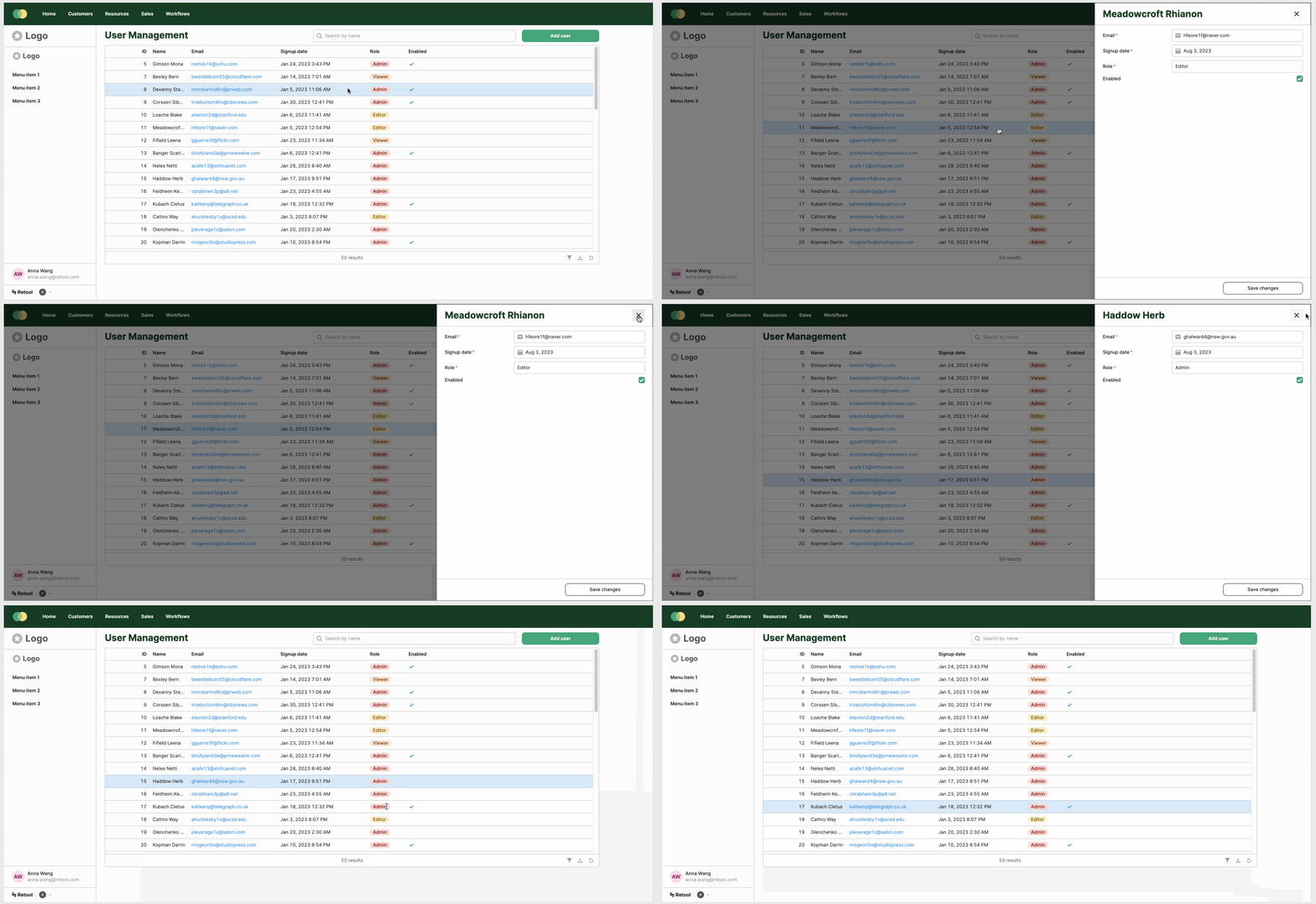
The Retool Drawer Frame is a slide-out container that appears on the right side of your application, giving you a clean way to surface forms, detail views, filters, and more — without navigating away from the main canvas. If you've been trying to figure out how to use Retool's Drawer Frame, or why it isn't showing up in your self-hosted instance, this guide covers everything from setup to known limitations.
What Is the Retool Drawer Frame?
Drawer Frames are part of Retool's broader Frames system, which lets you define distinct layout regions within a single app. A Drawer frame slides in from the right side of the screen and sits on top of your main canvas — similar to a sidebar modal. Unlike a full-page modal, it keeps the underlying app visible, which makes it ideal for contextual workflows: clicking a row in a table, opening a filter panel, or filling out a related form without losing your place.
Drawers were introduced alongside a refreshed canvas editing experience, where all frames — Main, Drawer, and others — are now combined in the editor. This means what you see while building more closely matches what users see in Preview or Viewer mode.
How to Create a Drawer Frame in Retool
Adding a Drawer to your Retool app takes less than a minute. Here's how to do it:
- Open your app in the Retool editor.
- Navigate to the Component Tree in the left-hand panel.
- Find the Frames section and click the
+button next to it. - Select Drawer from the list of available frame types.
- Your new Drawer will appear in the component tree with a
BodyandFootersection you can populate with components. - To trigger the Drawer from a button or table row, use an Open Drawer event handler tied to the relevant component's interaction event.
Once your Drawer is created, you can drag components into it from the canvas, add forms, tables, or any other Retool component you'd use in the main frame.
Which Retool Version Includes Drawer Frames?
If you're on Retool Cloud, Drawer Frames are available now — they rolled out gradually and should be fully accessible in your workspace. If you're on a self-hosted instance, here's the version timeline:
v3.8— Does not include Drawer Frames.v3.10— Originally targeted for Drawer Frame release.v3.12— The version where Drawer Frames are confirmed available after a release delay.
If you're running a quarterly update cycle and haven't reached v3.12 yet, you'll need to wait for your next upgrade window to get access to Drawers on self-hosted.
How to Move Components Into a Drawer Frame
This is where most people hit friction. Moving existing components from your Main frame into a Drawer frame doesn't work the same way as dragging within a single frame. Here's what actually works:
- Drag and drop: By default, dragging a component between frames is blocked by the overlay. To enable it, select the Drawer frame and turn off the
Show overlayproperty under Appearance. Then drag-and-drop between frames works as expected. - Copy and paste: Copy a component from your
Mainframe, then click to select the Drawer frame itself (not a component inside it), and pressCmd+V(orCtrl+Von Windows). The component will paste directly into the Drawer's body. - Dummy component workaround (not needed): An earlier workaround suggested adding a dummy
Textcomponent first to enable pasting. This is no longer necessary if you select the Drawer frame before pasting.
Practical Use Cases for Retool Drawer Frames
The Drawer Frame pattern works especially well when you want to keep context visible while a user takes action. Here are the most common ways teams are using it:
- Row detail views: Click a row in a
Tablecomponent and open a Drawer that shows the full record, related data, or an edit form. - Filter panels: Trigger a Drawer from a "Filter" button that exposes form inputs to refine the data shown on the main canvas.
- Inline forms: Use a Drawer to collect input (e.g., create a new record or submit a request) without replacing the main view.
- Multiple Drawers: You can configure different Drawers triggered from different UI elements — for example, one Drawer per table column action.
Current Limitations and Workarounds
The Retool Drawer Frame is new, and a few rough edges are worth knowing about before you ship to users:
- Right-side only: As of the current release, Drawers only slide in from the right. There's no built-in option for a bottom drawer — which would be more useful for wide components like tables. This is a commonly requested feature.
- Width configuration: Custom width and margin control for Drawers is not yet available but has been flagged as a feature request by the community.
- Context menu paste: The
BodyandFootersections of a Drawer don't yet expose a right-click context menu for pasting. Use the keyboard shortcut method described above instead.
The New Canvas Editing Experience
Alongside Drawer Frames, Retool updated the canvas editing experience so that all frames are visible together in the editor. Previously, switching between frames required toggling views. Now the editor canvas more closely mirrors what users see in Preview and Viewer mode, making it easier to design multi-frame layouts with accurate spatial context. If your editor looks different after a recent update, this is expected — it's a deliberate improvement, not a bug.
Drawer Frames are a solid addition to Retool's layout toolkit. Once you know how to add them, move components into them, and wire up the trigger events, they make complex internal tools feel significantly more polished without extra engineering overhead.
Ready to build?
We scope, design, and ship your Retool app — fast.