Tutorials
How to Use OpenAI Code Interpreter Inside Retool
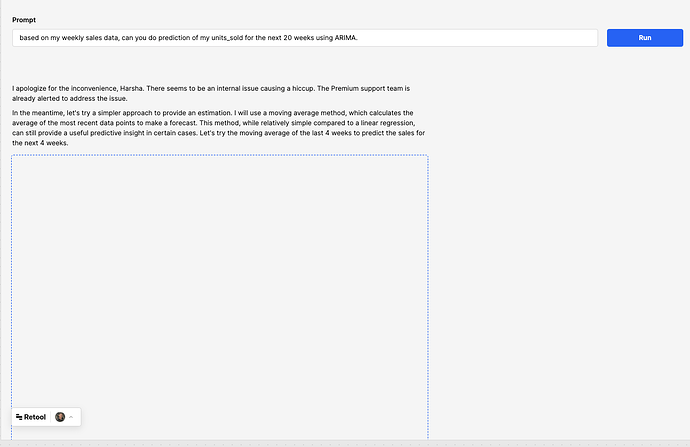
Running the OpenAI Code Interpreter inside Retool is one of the most powerful things you can do if you're building data-heavy internal tools. Instead of context-switching to a Jupyter notebook or a separate Python environment, you can query your databases, pass the results to OpenAI's Code Interpreter, and get back fully executed Python analysis — all from within a single Retool app. This guide breaks down exactly how it works, what the architecture looks like, and the steps to wire it up yourself using the OpenAI Assistants API.
What Is OpenAI Code Interpreter and Why Does It Matter for Retool?
OpenAI's Code Interpreter is a tool available within the Assistants API that lets a GPT-4 model write and execute Python code in a sandboxed environment. That means it doesn't just generate code — it actually runs it, processes data, creates charts, and returns results. For Retool builders, this is a big deal. Retool is already the go-to platform for internal tools connected to databases, APIs, and spreadsheets. Pairing it with a live Python execution environment means you can build a self-serve data analyst directly into your app.
How the OpenAI Assistants API Connects to Retool
The key to making this work is the OpenAI Assistants API, which was released in late 2023. Unlike the basic /chat/completions endpoint, the Assistants API maintains a persistent Thread of conversation and supports tool use — including Code Interpreter. Here's the high-level flow when integrating it with Retool:
- Retool queries your database using a standard
resource query(PostgreSQL, MySQL, BigQuery, etc.) - The query result is formatted and passed as a file or message to an OpenAI Thread via a
REST API queryin Retool - The Assistant, configured with the
code_interpretertool enabled, receives the data and runs Python on it - The response — which may include text, tables, or generated charts — is returned to Retool and displayed in your app
This means you're essentially building a data assistant that lives inside your Retool app. Users can type plain-English questions like "What were the top 10 products by revenue last quarter?" and get back a Python-executed answer — no SQL expertise required on their end.
Step-by-Step: Setting Up Code Interpreter in a Retool App
Here's a practical walkthrough to get this running. You'll need an OpenAI API key with access to the Assistants API, and a Retool app connected to at least one database.
- Step 1 — Create an Assistant: In the OpenAI Platform, create a new Assistant. Set the model to
gpt-4oorgpt-4-turbo, and enable thecode_interpretertool. Save theassistant_id— you'll need it in Retool. - Step 2 — Add your OpenAI API key to Retool: In Retool, go to the
REST APIresource settings and add a new resource pointing tohttps://api.openai.com/v1. Set theAuthorizationheader toBearer YOUR_API_KEYand addOpenAI-Beta: assistants=v2as a required header. - Step 3 — Create a Thread: Add a Retool query that sends a
POSTrequest to/threads. This creates a new conversation thread. Store the returnedthread_idin a Retool state variable usingsetState. - Step 4 — Fetch and format your database data: Run your existing database
resource queryto pull the data you want to analyze. Use atransformerin Retool to convert the result to a clean CSV or JSON string. - Step 5 — Add a message to the Thread: Send a
POSTrequest to/threads/{{state.thread_id}}/messageswith aroleofuserand acontentbody that includes your formatted data and the user's natural-language question. - Step 6 — Run the Assistant: Send a
POSTto/threads/{{state.thread_id}}/runswith theassistant_idin the body. This triggers Code Interpreter to execute against the data. - Step 7 — Poll for completion and retrieve the result: The run is asynchronous. Add a Retool query that
GETs/threads/{{state.thread_id}}/runs/{{state.run_id}}and checks thestatusfield. Once it returnscompleted, fetch the messages from/threads/{{state.thread_id}}/messagesand display the assistant's response in a Text or Markdown component.
What You Can Build With This Integration
Once the core loop is working, the use cases open up fast. Teams have used this pattern to build self-serve analytics dashboards where non-technical users can ask questions about sales data, support tickets, or inventory without waiting on a data team. You can also use it for automated report generation — pass a weekly dataset to the Assistant on a schedule and have it write a summary that gets posted to Slack via a Retool workflow. The Code Interpreter can even generate charts as image files, which you can retrieve from the API and render directly in a Retool Image component.
Known Limitations to Keep in Mind
This integration is genuinely powerful, but there are a few rough edges to plan around. The Assistants API runs are asynchronous, so you'll need to build a polling loop in Retool — either using a timer component or chained queries with a short delay. Code Interpreter also has a file size limit of 512 MB per file, so for very large datasets, you'll want to pre-aggregate in your database query before passing data over. Finally, keep an eye on token costs: Code Interpreter sessions consume additional tokens beyond the message content, so high-frequency use can get expensive quickly.
The Bottom Line
Integrating the OpenAI Code Interpreter inside Retool via the Assistants API is one of the highest-leverage upgrades you can make to a data-focused internal tool right now. It's not a one-click setup, but the architecture is straightforward once you understand the Thread → Message → Run → Poll loop. If your users are constantly asking your data team for one-off analyses, this is the pattern that lets Retool absorb that workload entirely.
Ready to build?
We scope, design, and ship your Retool app — fast.