Tutorials
How to Generate PDFs in Retool: 3 Methods Compared
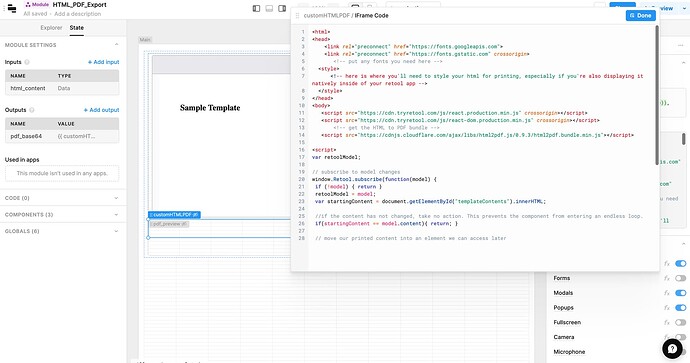
If you've ever tried to generate PDFs in Retool, you've probably run into the same wall: the built-in options work, but they don't always work well enough. Whether you need a polished client-facing report or a simple data export, Retool actually gives you three different approaches. This post breaks down how to generate PDFs in Retool using each method, when to use each one, and the exact steps to get it working — including a fix for the common JSON data structure problem that trips up most people.
Method 1: The Built-In PDF Exporter Resource Query
Retool's native PDF Exporter resource query lets you create PDFs directly from Markdown. It's the quickest way to get something out the door with zero external dependencies.
How to use it:
- Create a new resource query and select
PDF Exporteras the resource type. - Write your content using Markdown syntax in the query body.
- Run the query — the PDF will download directly to the user's machine.
Limitations to know:
- You cannot generate unique, dynamic file names for each download.
- It does not support HTML, so complex formatting is not possible.
- Best suited for simple, text-heavy exports where layout doesn't matter much.
Method 2: The downloadPage Utility (JavaScript Query)
The utils.downloadPage() function lets you capture all or part of your current Retool app as a PDF — essentially a programmatic screenshot. This is useful when your data is already displayed in a Retool table or chart and you just need to hand that view to someone.
How to use it:
- Create a new JavaScript query in Retool.
- Call
utils.downloadPage({ filename: 'my-report.pdf' })to capture the full page, or pass a specific component selector to capture a section. - Trigger the query from a button click.
Limitations to know:
- The output is limited to whatever is visually rendered on the current Retool page.
- You can generate unique file names dynamically, which is a step up from the
PDF Exporter. - If you need a PDF that looks different from your internal Retool UI — like a branded client report — this method will fall short.
Method 3: External PDF API (APITemplate or Similar)
For anything beyond basic exports, an external PDF generation API like APITemplate is the right tool. You design a reusable template, pass your Retool data to the API via a resource query, and get back a fully formatted PDF. This is the method to use when the output actually matters — invoices, proposals, compliance reports, anything customer-facing.
How to set it up:
- Sign up for APITemplate and design your PDF template using their editor, adding dynamic placeholders for your data fields.
- In Retool, create a new REST API resource pointing to the APITemplate endpoint, and add your API key in the headers.
- Create a resource query that sends your Retool data as a JSON body to the API.
- Handle the API response to either display a download link or trigger a file download using
utils.downloadFile().
This method requires more setup than the first two, but the steps are straightforward and the result is a PDF that looks exactly the way you need it to.
Fixing the JSON Structure Problem When Cycling Data in APITemplate
One of the most common issues when sending Retool query data to an external PDF API is a mismatch in JSON structure. Retool returns data from database queries as a column-oriented object — an object of arrays — that looks like this:
{ "Column1": [Row1, Row2, Row3], "Column2": [Row1, Row2, Row3] }
Most PDF template APIs, including APITemplate, expect a row-oriented array of objects instead:
[{ "Column1": Row1, "Column2": Row1 }, { "Column1": Row2, "Column2": Row2 }]
The fix is a single Retool transformer function. When referencing your query data in the API request body, wrap it like this:
{{ formatDataAsArray(yourQueryName.data) }}
This converts Retool's default column-oriented format into the row-oriented array that template APIs need to loop through your records correctly. This is not well-documented and causes a lot of confusion — save this snippet.
How to Insert Dynamic Images in Your PDF
Inserting dynamic images based on URLs is a legitimate gap in official documentation. The most reliable approach when using an external API like APITemplate is to include a URL field in your data payload and reference that field in your PDF template using the appropriate image placeholder. Most API-based PDF tools support an img tag or equivalent placeholder that accepts a URL at render time. Make sure the image URLs are publicly accessible — authenticated or localhost URLs will not resolve during server-side rendering.
Which PDF Method Should You Use in Retool?
- Use
PDF Exporterif you need a fast, no-setup Markdown export and formatting is not a concern. - Use
utils.downloadPage()if you just need to snapshot what's already visible in your Retool app. - Use an external API like APITemplate if you need branded, formatted, data-rich PDFs that look professional — this is the right choice for most real-world use cases.
The built-in methods are convenient shortcuts, but they hit a ceiling fast. For any internal tool that generates documents users will actually share or file, the external API route is worth the extra setup time. And with formatDataAsArray() in your back pocket, the hardest part of that integration is already solved.
Ready to build?
We scope, design, and ship your Retool app — fast.