Tutorials
How to Connect Retool to Google Calendar API
If you've been searching for how to connect Retool to the Google Calendar API, you're not alone. This comes up constantly in the Retool community, and the good news is: you don't need a third-party service like Nylas to make it work. The native Google Calendar API connects cleanly to Retool using OAuth 2.0, and once you know the exact steps, the whole setup takes under 15 minutes.
Why Retool Doesn't Have a Native Google Calendar Component (And Why It Doesn't Matter)
Retool doesn't ship a plug-and-play Google Calendar integration out of the box, which leads a lot of builders to assume they need a middleware layer. In reality, Retool's REST API resource type combined with OAuth 2.0 authentication gives you full access to the Google Calendar API — event listing, creation, updates, deletions, and more. You get everything the API offers without any abstraction in the way.
What You'll Need Before You Start
- A Google Cloud project with the Google Calendar API enabled
- OAuth 2.0 credentials (Client ID and Client Secret) created in the Google Cloud Console
- Admin access to your Retool workspace to create a new resource
Step 1: Set Up OAuth Credentials in Google Cloud Console
Head to the Google Cloud Console and either create a new project or select an existing one. Navigate to APIs & Services → Library and enable the Google Calendar API. Then go to APIs & Services → Credentials and click Create Credentials → OAuth client ID.
- Set the application type to Web application
- Give it a recognizable name (e.g.,
Retool Google Calendar) - Leave the Authorized redirect URIs field blank for now — you'll come back to this in Step 3
- Click Create and copy your Client ID and Client Secret — you'll need both in the next step
Step 2: Create the Resource in Retool
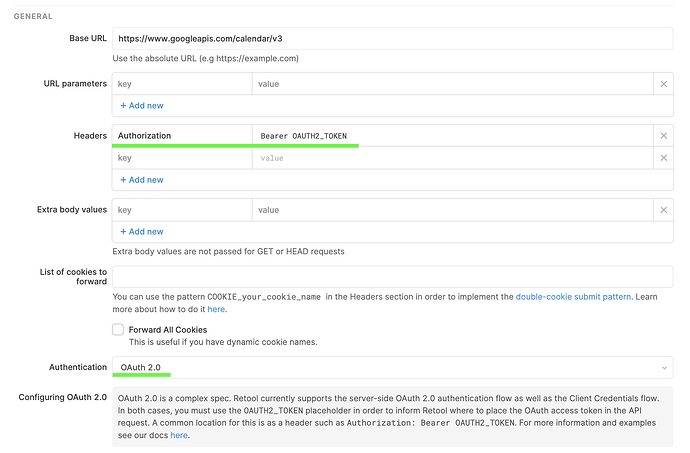
In your Retool workspace, go to the Resources tab and click Create new resource. Choose REST API as the resource type and fill in the following fields:
- Base URL:
https://www.googleapis.com/calendar/v3 - Authentication: Select
OAuth 2.0 - Authorization URL:
https://accounts.google.com/o/oauth2/v2/auth - Access Token URL:
https://oauth2.googleapis.com/token - Client ID: Paste the Client ID from Step 1
- Client Secret: Paste the Client Secret from Step 1
- Scope:
https://www.googleapis.com/auth/calendar(usehttps://www.googleapis.com/auth/calendar.readonlyif you only need read access)
Once these fields are filled in, Retool will display an OAuth Callback URL — a unique redirect URI for your workspace. Copy this URL before moving on.
Step 3: Paste the Retool Callback URL Back into Google
Return to your OAuth credential in the Google Cloud Console. Under Authorized redirect URIs, click Add URI and paste the callback URL you copied from Retool. Save the credential. This step is the one most people miss — without it, the OAuth handshake will fail and you'll get a redirect_uri_mismatch error.
Step 4: Authorize the Connection and Run Your First Query
Back in Retool, click Save and continue on the resource, then click Connect account to trigger the OAuth flow. You'll be redirected to Google's consent screen — sign in with the Google account whose calendar you want to access and grant the requested permissions.
Once authorized, head into your Retool app and create a new query using this resource. To fetch a list of upcoming events from the primary calendar, use:
- Method:
GET - Endpoint:
/calendars/primary/events - Query params:
timeMinset to{{ new Date().toISOString() }}andsingleEventsset totrue
Run the query and you should see a JSON response with your calendar events. From here, you can bind the data.items array to a Table component, a custom List view, or any other Retool component to display events however your app requires.
Common Errors and How to Fix Them
redirect_uri_mismatch: The callback URL in Google doesn't exactly match what Retool generated. Copy-paste it again — even a trailing slash difference will cause this.403 insufficientPermissions: Your OAuth scope is too narrow. Make sure you're usinghttps://www.googleapis.com/auth/calendarif you need write access, not just.readonly.- Empty
itemsarray: Check yourtimeMinparameter. If it's malformed, Google will return an empty result set rather than an error. - Token expiry issues: Retool handles token refresh automatically as long as you included
access_type=offlinein your authorization parameters and Google issued a refresh token on first consent.
What to Build Once You're Connected
With the Google Calendar API wired into Retool, the use cases open up fast. Common internal tools built on this integration include scheduling dashboards that pull events across multiple team calendars, admin panels for creating or canceling meetings programmatically, and on-call rotation viewers that sync with shared Google Calendars. Since you have direct API access, you're not limited by any Retool component abstraction — anything the Google Calendar API supports, your Retool app can do.
Ready to build?
We scope, design, and ship your Retool app — fast.