Guides
How to Build AI Apps with Retool AI: Chatbots, Workflows & More
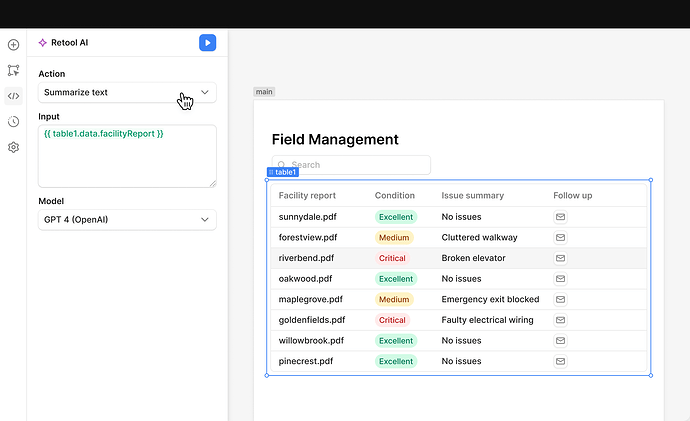
If you've been waiting for a practical way to add AI to your internal tools without stitching together a dozen APIs, Retool AI is the answer. Retool's suite of AI building blocks lets you build AI-powered apps and workflows — including data-aware chatbots, image classifiers, and text summarizers — in minutes. This guide covers everything that launched, how each feature works, and the real-world questions developers are already asking as they ship with it.
What Is Retool AI?
Retool AI is a collection of native AI features built directly into the Retool platform. Instead of wiring up OpenAI endpoints manually through REST queries, you get pre-built components and actions that slot into your existing apps and workflows. The suite has three main pillars:
- AI Actions — pre-built operations like summarize text, classify images, and extract entities
- Retool Vectors — a managed vector store for building data-aware AI chatbots
- AI Assistant — an in-editor assistant that generates code and queries with full context of your app
Out of the box, gpt-4 and gpt-3.5-turbo are supported. You can plug in your own OpenAI API key and swap in other LLMs at any time, giving you flexibility as the model landscape evolves.
How to Use Retool AI Actions in Your Apps
AI Actions are the fastest way to add intelligence to an existing Retool app. Each action is a pre-configured query type — no custom API calls required. Here's how to get started:
- Open your Retool app and add a new query
- Select
Retool AIas the resource type - Choose an action:
Summarize text,Classify image,Extract entities,Generate text from image, and more - Select your model (e.g.
gpt-4orgpt-4-vision) and connect your input data - Run the query and wire the result to a component
For vision tasks specifically — like using gpt-4-vision to analyze uploaded images — the Generate text from image action type supports both URL-based images and base64-encoded data. If you're pulling images from Retool Storage, base64 is the path to use. One common early issue: make sure you're selecting gpt-4-vision (not the generic gpt-4 model) when you need image input. The model selector in the action config controls this directly.
How to Build a Data-Aware AI Chatbot with Retool Vectors
Retool Vectors is the feature getting the most attention — and for good reason. It's a fully managed vector store that lets you build chatbots that actually know your data. You can feed it PDFs, crawl websites, or connect SaaS tools, and then query it with natural language to get accurate, grounded answers.
Here's the basic setup flow:
- Navigate to Retool Vectors in your cloud account dashboard
- Create a new vector store and choose your data source: upload a PDF, enter a website URL to crawl, or connect a SaaS integration
- Retool chunks, embeds, and indexes your content automatically
- In your app, add a
Chatbotcomponent or wire up a query to the vector store - Set your system prompt and point the chat resource at your vector store
- Deploy — your chatbot will now answer questions using your actual data
Under the hood, when a user asks a question, Retool performs a vector similarity search against your indexed content, retrieves the most relevant chunks, and passes them as context to the LLM before generating a response. This retrieval-augmented generation (RAG) pattern is what keeps answers grounded and accurate rather than hallucinated.
Using the AI Assistant to Write Code and Debug Queries Faster
The AI Assistant inside the Retool editor is purpose-built for the internal tool context. Unlike a generic ChatGPT session, it has live awareness of your app's component tree and connected data sources. You can ask it to write a transformedData JavaScript snippet, generate a SQL query against a specific table, or explain why a query is returning unexpected results — and it will use your actual schema and component names in the response.
To use it, open any code editor pane in Retool and click the AI Assistant icon, or use the keyboard shortcut. Type your question in plain English and it generates working code inline. It's particularly useful when you're debugging a complex {{formatDataAsObject()}} transformation at 11pm and don't want to dig through docs.
GPT-4 Turbo, Vision, and DALL·E 3 Support
Retool moves quickly to support new OpenAI model releases. GPT-4 Turbo (including the vision variant) and DALL·E 3 are already available in the native Retool AI integration. When using vision capabilities, select gpt-4-vision as your model inside the AI action config. Both URL-based and base64 image inputs are supported through the Generate text from image action type.
Self-Hosted Retool: When Does AI Arrive?
Retool AI launched first on cloud. Self-hosted customers will get access starting with v3.12. If you're on a self-hosted instance and want to plan ahead, the feature set will be equivalent — same AI actions, same vector store, same assistant. Watch the Retool release notes and the community forum for the official v3.12 rollout announcement.
Getting Started Today
If you're on Retool Cloud, Retool AI is live in your account right now. Log in, open any app or workflow, and look for the Retool AI resource type when adding a new query. For the vector store, find Retool Vectors in the left nav of your dashboard. The official Retool AI docs cover every action type with configuration details. For questions specific to your use case, the Retool community's App Building and Workflows categories are the fastest place to get answers from both the Retool team and other builders.
Ready to build?
We scope, design, and ship your Retool app — fast.