Tutorials
Generate PDFs in Retool Using a Custom Component and html2pdf
If you need to generate a PDF in Retool using a custom component and html2pdf, you're not alone. Retool's native PDF options are limited, and third-party services like Carbone add cost and complexity. The good news: you can build a lightweight, self-contained PDF generator entirely inside Retool using html2pdf.js — full CSS control, no API fees, and clean enough output to send directly to customers.
Why Not Just Use jsPDF or a Third-Party PDF API?
jsPDF works for simple use cases, but falls short when you need precise page-break control or polished, customer-facing documents. Third-party services like Carbone are genuinely useful — especially if you're generating .xlsx files too — but they come with per-volume pricing that adds up fast. If your team is generating dozens of PDFs per week and you're comfortable with HTML and CSS, building your own solution inside Retool is the smarter long-term play.
How the Retool html2pdf Custom Component Works
The approach is straightforward. You create a Retool custom component that loads html2pdf.js from a CDN, accepts an HTML string via the component model, and renders a button that triggers PDF generation. When clicked, the button converts the HTML to a PDF blob and opens it in a new browser tab. The new-window trigger is intentional — it satisfies browser sandbox security requirements without needing to escape the iframe through other means.
Here's the full custom component code:
- Load
html2pdf.bundle.min.jsfrom the Cloudflare CDN - Subscribe to model changes using
window.Retool.subscribe()to receive your HTML string - Inject the HTML string into a hidden
<div>withid="templateContents" - On button click, call
window.html2pdf().set(opt).from(...).toPdf().output('bloburl')and pass the result towindow.open()
The key insight is using .output('bloburl') instead of html2pdf's native save function. This gives you a blob URL you can pass directly to window.open(), which opens cleanly in a new tab and avoids sandbox restrictions.
Step-by-Step Setup in Retool
- Step 1: Create a new Custom Component in your Retool app.
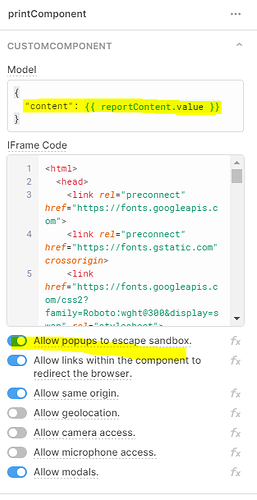
- Step 2: In the component model, add a key called
contentand point its value to a temporary state variable (e.g.,{{ tempState1.value }}) that will hold your HTML string. - Step 3: In the component settings, enable Allow popups to escape sandbox — this is required for
window.open()to work. - Step 4: Paste the following HTML into the custom component code editor:
<script src="https://cdnjs.cloudflare.com/ajax/libs/html2pdf.js/0.9.3/html2pdf.bundle.min.js"></script>
Inside your script block, subscribe to model updates and write the pdprint() function:
window.Retool.subscribe(function(model) { if (!model) return; document.getElementById("templateContents").innerHTML = model.content; });
And the print function with your preferred jsPDF options:
function pdprint() { var opt = { margin: 0.5, filename: 'myfile.pdf', image: { type: 'jpeg', quality: 0.98 }, html2canvas: { scale: 2 }, jsPDF: { unit: 'in', format: 'letter', orientation: 'portrait' } }; window.html2pdf().set(opt).from(document.getElementById("templateContents").innerHTML).toPdf().output('bloburl').then(function(pdfas) { window.open(pdfas); }); }
- Step 5: Add a
<button>element withonclick="pdprint(); return false"and a hidden<div id="templateContents">to hold the injected HTML. - Step 6: In your Retool app, populate the
tempStatevariable with your HTML string — built dynamically using JavaScript, a query result, or a template literal — then click the button in the custom component to generate the PDF.
Known Limitations to Plan Around
This approach is solid, but there are a few gotchas the community has surfaced worth knowing before you ship:
- Large document canvas limits:
html2pdf.jsrenders via the browser'scanvaselement, which has size constraints. Long documents can produce blank pages. The workaround is to split your HTML into sections, generate PDFs for each, and merge them — more complex, but doable. - Hidden component = no output: If you set the custom component to
hidden: true, it stops rendering and the PDF generation won't fire. The practical fix is to make the component extremely small (a single slim row) and tuck it into a low-visibility area of your layout rather than hiding it outright. - Layout shifts cause component reloads: Because custom components are iframes, any layout change that repositions the component (e.g., a sibling component toggling visibility) will trigger a full reload. Place the component somewhere stable in your layout.
- Dynamic HTML is on you: Simple field substitution using
{{ }}inside the HTML string is easy. Generating table rows from query results requires a bit more JavaScript — a.map()over your query data to build HTML strings works well for this.
Extending the Component: Base64 Output and Retool PDF Viewer
If you want to render the PDF inline using Retool's native PDF component instead of opening a new window, you can modify the output step to produce a base64 binary string. Use .output('datauristring') and pass the result back via window.Retool.modelUpdate(). This lets you build a reusable module where you pass in an HTML string, get a base64 PDF back, and pipe it into utils.downloadFile() or a PDF viewer — all without leaving your Retool app.
When to Use html2pdf vs. a Service Like Carbone
Use html2pdf inside a Retool custom component when your PDFs are short-to-medium length, you or your team are comfortable with HTML and CSS, and you want zero marginal cost per generation. Reach for Carbone or a similar service when your documents are long and complex, you need Word-compatible templates that non-developers can maintain, or you're already using Carbone for .xlsx generation and want to keep your stack consistent.
For most internal tools generating invoices, reports, or order summaries, the custom component approach is more than enough — and it keeps everything inside your Retool environment where you have full control.
Ready to build?
We scope, design, and ship your Retool app — fast.